I don’t really do proper ‘new year resolutions’, but I like to pick some general
approaches I’ll aim to adopt. This year, I’m going for ‘deeper learning’, and
I’ll start somewhere really easy: the less command. It’s not a sexy one, by
any means, but its simplicity means it will be a perfect candidate.
Like many people, I suspect, I use less now and again to read files, man pages, and so on. But I don’t really use any of its features at all; space to move down a page, enter to move down a line, that’s about it.
I’ve mainly been inspired by a post titled “Assorted less(1) tips”, by Tim Chase and its discussion on Lobsters.
So I’m working through the man page, trying to use less as much as possible,
and I’ll note the useful stuff somewhere like this very post.
Help #
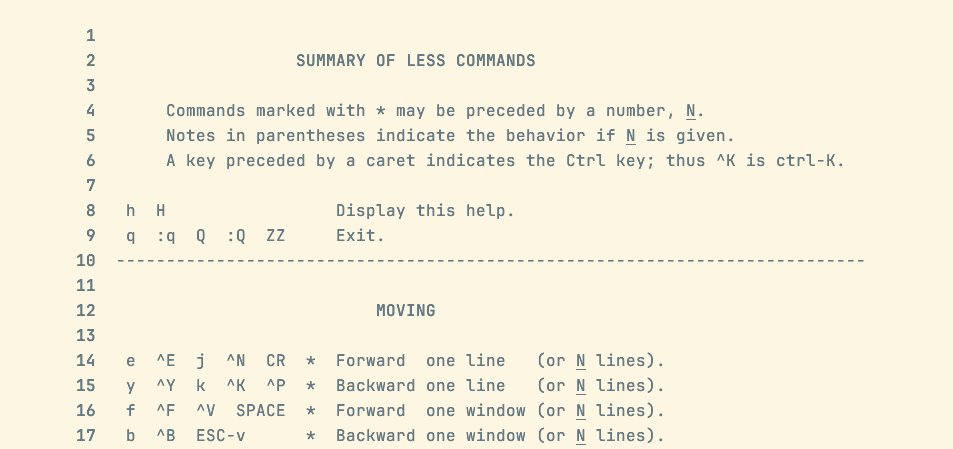
While the man page is useful (and—at 2,359 lines long—comprehensive!), less is
fundamentally an interactive tool, so remembering that h launches help in
interactive mode is a big step.
Showing percentage / position / progress through a file #
One of the most useful things to know when paging through a file is your
position within it. I like tools that show this persistently, in a status bar,
and it’s a bit weird that less doesn’t do this by default. Still, you can show
what less calls a ‘prompt’ with -M:

A post on Stack Overflow titled Constantly display status line in less was helpful here.
Numbering lines #
While this prompt normally includes details about the current lines shown, it won’t do so all the time. If you’re viewing the help page, for example, you won’t see line numbers in the prompt. You also won’t see progress or the total number of lines until you’ve reached the end of input piped to less, since that would be impossible.
In these cases—and, for other reasons—you may want to show line numbers. The
appropriate command-line option is -N, and here’s another thing I learned about
less: you can type that (literally press the minus key, then press N followed by
return) in interactive mode. It’s perfect for when you forget to launch less
with that option.
Search stuff #
-J shows a status line which helps you locate search matches, but I’m not
yet sure it’s too useful. But, on the topic of search, I noted that a search
(using the familiar /) followed by n to jump to the next match actually
jumps to the next matching line since less is line-oriented.
Others #
There’s v to open the current file in your EDITOR, which I’m definitely
going to make use of if I can remember it.
And you can jump to a line number using g or G followed by the number. Without
a number, you’ll go to either the beginning of end of the file, respectively.
Man pages #
Finally, I ran into problems in man where line numbers don’t work properly since
man formats to a fixed column width before less adds them, which introduces
horrible misplaced line breaks. There’s a workaround I don’t really like, so I
may try to find an alternative MANPAGER.